
SP Flash Tool Download-Apk Latest App Free For Android
Today
10.30 MB
V6.2316.00
Android+5
1K

Description
Android phones can sometimes face software problems that stop them from working properly. For example, a phone may get stuck on the startup screen, fail during an update, or refuse to start after a software error. In these situations, users often look for a reliable way to restore the original system. SP Flash Tool is one utility that can help with certain software problems on compatible MediaTek Android devices.
This guide explains what SP Flash Tool does, how its main features work, which files and drivers you may need, and what to check before flashing firmware. It also covers common errors, alternative tools, and important safety measures. By understanding these details first, you can make better decisions and reduce the risk of losing personal data or damaging your phone’s software.
What Is SP Flash Tool?
SP Flash Tool stands for Smart Phone Flash Tool. It is a computer program that works with supported Android phones and tablets powered by MediaTek (MTK) chipsets. Users and repair technicians can use it to install compatible firmware, write selected device partitions, and attempt to recover some phones affected by software problems. you can visit this one jala live
Firmware is the software that helps a device start and communicate with its hardware. When firmware files become damaged or an update fails, the phone may stop working as expected. In certain cases, installing the correct firmware can help restore normal operation.
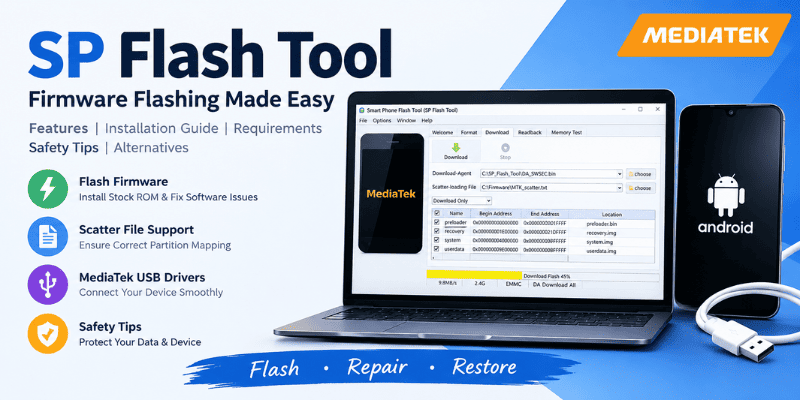
For example, you might consider this utility when:
- Your phone remains stuck on the startup logo because of a software problem.
- A system update fails and the device cannot start normally.
- You need to reinstall the manufacturer’s original firmware.
- You want to flash a compatible recovery image.
- A software error prevents normal access to Android.
However, this program does not work with every Android device. SP Flash Tool mainly supports compatible MediaTek-based models. Phones with Qualcomm Snapdragon or Samsung Exynos chipsets usually require different tools or procedures. Even two phones from the same brand may need different firmware packages.
Before you begin, identify your exact phone model, hardware variant, chipset, and firmware version. These details help you avoid selecting files that do not match your device.
Why Do People Use SP Flash Tool?
Normal Android settings cannot solve every software problem. When a phone fails to start or its system files become corrupted, a compatible firmware utility may offer another recovery option.
Here are some common reasons people use this program in SP Flash Tool .
Restore original firmware: You can install a matching stock firmware package when the existing system has serious software problems.
Recover from certain boot problems: The utility may help with some devices that become stuck during startup because of damaged firmware.
Write selected partitions: Advanced users can work with specific storage partitions when their device and firmware support the required operation.
Support repair work: Mobile repair technicians can use computer-based flashing tools to troubleshoot supported devices.
Test compatible firmware: Developers and experienced users may use firmware images during testing and software development.
Nevertheless, the program cannot repair every damaged phone. Hardware faults, failing internal storage, unsupported security systems, and missing authorization files can prevent successful recovery. Always investigate the cause of the problem before flashing firmware.
Main Features of SP Flash Tool 2026:
Firmware Installation
Firmware installation is the primary purpose of this utility. It can write compatible system files to supported MediaTek devices. This process may help when Android no longer starts because of a software issue.
The correct firmware package is essential. Files for another model or hardware variant can cause startup failures or other serious problems. Therefore, confirm compatibility before starting the process.
Scatter File Compatibility
Many MediaTek firmware packages include a scatter file. This file describes the layout of the device’s storage and identifies where individual firmware images belong.
You can think of a scatter file as a map. It helps the program identify the correct locations for the files it needs to write. However, a scatter file from a different device or firmware build may describe the wrong storage layout.
Always use the scatter file supplied with the matching firmware package. Never assume that files from two similar-looking phones are interchangeable.
Different Flashing Modes
Depending on the program version and the supported device, you may find several flashing options. Each option can affect the phone differently.
Download Only: This mode writes the selected firmware partitions. Its effect on personal data depends on the selected partitions, firmware configuration, and device.
Firmware Upgrade: This option updates or reinstalls firmware according to the package and device configuration. It may affect user data and should not be treated as a guaranteed data-preserving method.
Format All + Download: This option can erase device storage before writing firmware. It carries a particularly high risk because it may remove personal files and important device-specific information.
The available modes and their behavior can vary. SP Flash Tool in Read the instructions for your exact device before choosing an option. Avoid formatting storage or changing critical partitions unless reliable, device-specific guidance requires it.
Readback and Backup Options
Some versions support reading selected device partitions and saving their contents to a computer. Experienced users may find this useful when creating backups for repair or development work.
However, a readback operation does not automatically create a complete backup of the phone. It may save only the selected sections. Before relying on a backup, confirm which data it contains and whether you can restore it successfully.
USB Connection Support
The program communicates with compatible phones through a USB connection. Depending on your computer and device, you may need suitable MediaTek USB drivers for the connection to work.
A reliable data cable and a working USB port can also help prevent connection problems. If the program cannot detect your phone, check the drivers and follow the connection instructions provided for your particular model.
Progress Information and Error Messages
During a flashing operation, the interface can display progress information and report certain errors. These messages may help you identify problems with firmware files, device connections, or authorization requirements.
Do not ignore an error simply because the progress bar has moved. Stop and understand the message before attempting another operation. Repeating failed attempts without identifying the cause can make recovery more difficult.
How to Use SP Flash Tool?
Important safety notice: Firmware flashing can erase personal data or leave a phone unable to start if you use incorrect files or settings. If you are unfamiliar with firmware repair, consider contacting an authorized service center.
The following steps describe the general process. Your device may require additional instructions, signed firmware, or manufacturer authorization.
Prepare the Required Files
Obtain a compatible version of the flashing program and the correct firmware package for your exact phone model. Prefer trusted sources, such as the manufacturer’s support resources or an authorized service provider.
Extract the downloaded files into a suitable folder on your computer. Check that the package contains the files required for your device before continuing.
Install the Necessary Drivers of SP Flash Tool :
Install the appropriate MediaTek USB drivers if your computer needs them. Follow the instructions provided by a trusted driver source.
After installation, check whether Windows recognizes the device correctly. Driver requirements can vary between models and Windows versions, so use device-specific guidance when necessary.
Load the Matching Scatter File
Open the program and locate the scatter file included with your firmware package. Select that file and review the partitions shown in the interface.
Confirm that the firmware package belongs to your phone. If the scatter file is missing, reports an error, or appears incompatible, stop instead of trying a random replacement.
Review the Firmware and Settings
Check the selected firmware images and the available flashing options. Make sure you understand what the selected operation will change.
Back up your important files before continuing. Avoid formatting the device or writing sensitive partitions unless the instructions for your exact model clearly require it.
Connect the Phone and Follow the Device Instructions
Connect the phone using a suitable USB data cable and follow the connection procedure for your model. Some devices require a particular power state or button combination.
Allow the process to finish without disturbing the connection. If an error appears, record its message and investigate the cause before trying again. Follow the manufacturer’s instructions before disconnecting or restarting the phone.
Remember that these steps provide only a general overview. Modern devices may require additional authentication, authorization files, or manufacturer-specific procedures.
System Requirements
The exact requirements depend on the program version, computer, and phone model. Review the relevant documentation before installation.
| Requirement | Details |
|---|---|
| Computer | A compatible Windows PC; support on other operating systems depends on the release |
| USB cable | A reliable data cable that supports file transfer |
| USB drivers | Compatible MediaTek drivers when required |
| Firmware files | A package designed for the exact device and hardware variant |
| Free storage | Enough space for the program, firmware, and backup files |
| Battery | Follow the charging and connection instructions for the device |
| Technical knowledge | A basic understanding of firmware, partitions, and data-loss risks |
Older releases may not support newer phones or their security requirements. Likewise, a newer release does not automatically support every MediaTek model.
If you are considering version V6.2316.00, verify that the release is genuine and suitable for your device before downloading it. Do not assume that a version number alone confirms compatibility.
Tips for Using SP Flash Tool Safely
A careful approach can reduce the chance of software damage and unnecessary data loss.
- Confirm the exact model: Check the complete model number and hardware variant rather than relying on the phone’s marketing name.
- Back up personal files: Save important photos, videos, contacts, documents, and messages before making firmware changes.
- Match the firmware: Use files intended for your exact device and compatible software configuration.
- Choose trusted downloads: Avoid suspicious installers, modified packages, and websites that make unrealistic promises.
- Check the USB connection: Use a dependable cable and avoid interrupting an active flashing operation.
- Understand each mode: Review the effects of the selected operation before allowing it to change device storage.
- Avoid unnecessary partition changes: Do not experiment with critical partitions, including the preloader, without reliable model-specific instructions.
- Respect device security: Do not attempt to bypass authorization protections or use firmware files that you cannot verify.
- Keep device information: Record your model, current firmware details, and relevant recovery instructions.
- Seek expert assistance when needed: If the phone has valuable data or you are unsure about the process, a qualified technician may be the safer choice.
Whenever possible, use the manufacturer’s recommended recovery procedure before attempting advanced firmware operations.
Is SP Flash Tool Safe?
SP Flash Tool is a firmware utility, but safe results depend on the software source, the selected files, and the way you use it. Downloading a program does not guarantee that every package available online is trustworthy.
Computer safety: Untrusted installers may contain unwanted or harmful software. Download carefully, scan files when appropriate, and avoid suspicious websites.
Device safety: Incorrect firmware or unsuitable partition settings can prevent a phone from starting. Some problems may require specialized recovery equipment or professional service.
Personal data safety: Certain flashing and formatting operations can remove photos, messages, applications, and other files. A backup is important, but it should not be assumed that every flashing method preserves data.
Some device partitions also contain calibration, identification, or security-related information. Changing or deleting these sections can create additional problems. For this reason, avoid unnecessary formatting and do not treat third-party downloads as safe without checking their source.
Advantages and Disadvantages of SP Flash Tool
Advantages
- Supports firmware operations on compatible MediaTek devices.
- Can help restore certain damaged software installations.
- Offers different flashing operations depending on the device and version.
- Provides useful options for experienced repair technicians.
- May help recover some phones that cannot start Android normally.
- Supports selected partition-related tasks on compatible devices.
Disadvantages
- Does not support every Android phone.
- Incorrect files can cause serious software problems.
- Driver and connection issues may interrupt the process.
- Some operations require advanced technical knowledge.
- Data loss is possible.
- Newer devices may require extra authorization or security checks.
Overall, this utility can be helpful for supported devices, but it is not a universal solution for every phone problem. Users should weigh its benefits against the risks before proceeding.
Best Alternatives to SP Flash Tool
If your phone does not support this utility, consider a tool designed for its manufacturer or firmware method. The best alternative depends on the device model, chipset, and bootloader or authorization requirements.
Android Flash Tool
Android Flash Tool provides a browser-based method for installing compatible Android builds on supported devices. It is useful for eligible Google Pixel devices and certain development devices.
Check the official Android Flash Tool website and confirm that your model and intended firmware are supported before beginning.
ADB and Fastboot
SP Flash Tool Debug Bridge (ADB) and Fastboot are command-line tools used for supported Android debugging, device communication, bootloader operations, and certain firmware installation tasks.
They are not universal replacements for SP Flash Tool. Some operations require an unlocked bootloader or a specific device configuration. Download the official Android SDK Platform-Tools package and follow the instructions for your model.
Odin
Odin is commonly associated with Samsung device firmware workflows. It serves a different purpose from MediaTek-focused flashing utilities and is not suitable for every Samsung model or every Android repair.
Use a trusted source and compatible firmware. Before proceeding, verify the instructions for your exact device.
Xiaomi Mi Flash Tool
Xiaomi Mi Flash Tool supports certain Xiaomi devices and compatible fastboot firmware packages. Device restrictions, bootloader status, and authorization requirements may affect its use.
Confirm your model’s requirements before selecting this option. A manufacturer-specific tool is generally a better starting point when the phone’s official support documentation recommends it.
Common SP Flash Tool Problems and Solutions
The Program Cannot Detect the Phone
Check the USB cable, computer port, and required drivers. Make sure the phone is in the connection state specified by its repair instructions. If the problem continues, check the device’s compatibility with the program version.
The Scatter File Shows an Error
SP Flash Tool is scatter file may not match the selected firmware package, or the package may be incomplete. Obtain the correct firmware for your exact model instead of substituting a file from another phone.
Flashing Stops Before Completion
Read the error message and check the cable, firmware compatibility, and any authorization requirements. Avoid repeatedly starting the same operation without understanding why it failed.
The Phone Remains on the Startup Logo
The firmware may be unsuitable, the installation may be incomplete, or the underlying issue may involve hardware. Review the device-specific recovery instructions before attempting another flash.
The Phone Does Not Start After Flashing
Stop experimenting with different firmware packages. Repeated attempts can increase the risk of further problems. A qualified technician may need to determine whether the issue comes from firmware, storage, or another hardware component.
An Authentication Error Appears
Some devices require a compatible download agent, authentication file, or authorized repair procedure. Check the official or trusted device-specific documentation. Do not attempt to bypass security protections.
FAQs About SP Flash Tool:
What is SP Flash Tool used for?
It installs compatible firmware on supported MediaTek Android devices. Depending on the model and software package, users may use it to restore original firmware, address certain startup problems, or perform advanced repair operations.
Is SP Flash Tool free?
The utility is commonly distributed without a purchase fee. However, some repair procedures may require authorized services, specialized files, or professional assistance. Check the source before downloading and be cautious of unnecessary payment requests.
Does SP Flash Tool work on every Android phone?
No. It focuses on supported MediaTek devices. Phones using other chipsets or manufacturer-specific firmware systems generally require a different method.
Can SP Flash Tool repair a dead phone?
It may recover some phones that cannot start because of firmware problems. However, it cannot guarantee recovery from hardware damage, failing storage, incompatible security settings, or every type of software failure.
Can SP Flash Tool remove a screen lock?
It is not a universal screen-lock removal solution. Flashing may erase personal data, and the device may still require its original account or security credentials. Use the manufacturer’s authorized account recovery process.
Does SP Flash Tool delete personal data?
It can. The result depends on the flashing mode, selected partitions, firmware package, and device configuration. Formatting and some upgrade operations may erase personal files, so back up important information first.
Do I need MediaTek USB drivers?
Some computers need compatible MediaTek USB drivers to communicate with a supported device. The exact requirement depends on the phone, operating system, and flashing procedure.
What should I do if flashing fails?
SP Flash Tool in there are the Record the error message, check firmware compatibility, and review the USB connection and authorization requirements. Avoid repeated attempts until you understand the cause. Seek qualified help if the device no longer responds.
Conclusion
SP Flash Tool can help users and repair technicians perform firmware operations on compatible MediaTek Android phones and tablets. Its main uses include installing original firmware, writing supported device partitions, and attempting to recover certain software-related failures. However, it cannot repair every device, and incorrect files or settings can lead to serious problems.
Before using the program, identify your exact phone model, confirm firmware compatibility, and check whether the manufacturer offers a safer recovery method. Back up important information, download files from trustworthy sources, and avoid advanced operations unless you understand their effects. SP Flash Tool careful approach can reduce unnecessary risks and help you choose the right repair method for your device.
Download links
How to install SP Flash Tool Download-Apk Latest App Free For Android APK?
1. Tap the downloaded SP Flash Tool Download-Apk Latest App Free For Android APK file.
2. Touch install.
3. Follow the steps on the screen.